It seems we can’t find what you’re looking for. Perhaps searching can help.
Array
(
[Fleet Tracking Portal] => Array
(
[Enterprise] => Array
(
[documentation] => Array
(
)
[video] => Array
(
)
[bestpractice] => Array
(
)
[deepdive] => Array
(
)
)
)
[Advanced Admin] => Array
(
[Enterprise] => Array
(
[documentation] => Array
(
[13] => Array
(
[posts] => WP_Query Object
(
[query] => Array
(
[orderby] => title
[order] => ASC
[post_type] => documentation
[posts_per_page] => 999
[tax_query] => Array
(
[0] => Array
(
[taxonomy] => feature
[field] => term_id
[terms] => 13
[include_children] => 1
)
[1] => Array
(
[taxonomy] => solution
[field] => term_id
[terms] => 12
)
[relation] => AND
[2] => Array
(
[taxonomy] => product
[field] => term_id
[terms] => 511
)
)
[meta_query] => Array
(
[0] => Array
(
[key] => _exclude_whitelabel_full
[compare] => NOT EXISTS
)
)
)
[query_vars] => Array
(
[orderby] => title
[order] => ASC
[post_type] => documentation
[posts_per_page] => 999
[tax_query] => Array
(
[0] => Array
(
[taxonomy] => feature
[field] => term_id
[terms] => 13
[include_children] => 1
)
[1] => Array
(
[taxonomy] => solution
[field] => term_id
[terms] => 12
)
[relation] => AND
[2] => Array
(
[taxonomy] => product
[field] => term_id
[terms] => 511
)
)
[meta_query] => Array
(
[0] => Array
(
[key] => _exclude_whitelabel_full
[compare] => NOT EXISTS
)
)
[error] =>
[m] =>
[p] => 0
[post_parent] =>
[subpost] =>
[subpost_id] =>
[attachment] =>
[attachment_id] => 0
[name] =>
[pagename] =>
[page_id] => 0
[second] =>
[minute] =>
[hour] =>
[day] => 0
[monthnum] => 0
[year] => 0
[w] => 0
[category_name] =>
[tag] =>
[cat] =>
[tag_id] =>
[author] =>
[author_name] =>
[feed] =>
[tb] =>
[paged] => 0
[meta_key] =>
[meta_value] =>
[preview] =>
[s] =>
[sentence] =>
[title] =>
[fields] => all
[menu_order] =>
[embed] =>
[category__in] => Array
(
)
[category__not_in] => Array
(
)
[category__and] => Array
(
)
[post__in] => Array
(
)
[post__not_in] => Array
(
[0] => 14750
[1] => 23436
[2] => 27424
[3] => 27817
[4] => 30225
[5] => 31065
[6] => 31175
[7] => 32017
[8] => 32296
[9] => 32565
[10] => 32605
[11] => 32636
[12] => 33723
[13] => 33737
[14] => 33761
[15] => 34344
[16] => 34459
[17] => 34553
[18] => 34586
[19] => 34590
[20] => 34604
)
[post_name__in] => Array
(
)
[tag__in] => Array
(
)
[tag__not_in] => Array
(
)
[tag__and] => Array
(
)
[tag_slug__in] => Array
(
)
[tag_slug__and] => Array
(
)
[post_parent__in] => Array
(
)
[post_parent__not_in] => Array
(
)
[author__in] => Array
(
)
[author__not_in] => Array
(
)
[search_columns] => Array
(
)
[ignore_sticky_posts] =>
[suppress_filters] =>
[cache_results] => 1
[update_post_term_cache] => 1
[update_menu_item_cache] =>
[lazy_load_term_meta] => 1
[update_post_meta_cache] => 1
[nopaging] =>
[comments_per_page] => 50
[no_found_rows] =>
[taxonomy] => feature
[term_id] => 13
)
[tax_query] => WP_Tax_Query Object
(
[queries] => Array
(
[0] => Array
(
[taxonomy] => feature
[terms] => Array
(
[0] => 13
)
[field] => term_id
[operator] => IN
[include_children] => 1
)
[1] => Array
(
[taxonomy] => solution
[terms] => Array
(
[0] => 12
)
[field] => term_id
[operator] => IN
[include_children] => 1
)
[relation] => AND
[2] => Array
(
[taxonomy] => product
[terms] => Array
(
[0] => 511
)
[field] => term_id
[operator] => IN
[include_children] => 1
)
)
[relation] => AND
[table_aliases:protected] => Array
(
[0] => wp_term_relationships
[1] => tt1
[2] => tt2
)
[queried_terms] => Array
(
[feature] => Array
(
[terms] => Array
(
[0] => 13
)
[field] => term_id
)
[solution] => Array
(
[terms] => Array
(
[0] => 12
)
[field] => term_id
)
[product] => Array
(
[terms] => Array
(
[0] => 511
)
[field] => term_id
)
)
[primary_table] => wp_posts
[primary_id_column] => ID
)
[meta_query] => WP_Meta_Query Object
(
[queries] => Array
(
[0] => Array
(
[key] => _exclude_whitelabel_full
[compare] => NOT EXISTS
)
[relation] => OR
)
[relation] => AND
[meta_table] => wp_postmeta
[meta_id_column] => post_id
[primary_table] => wp_posts
[primary_id_column] => ID
[table_aliases:protected] => Array
(
[0] => wp_postmeta
)
[clauses:protected] => Array
(
[wp_postmeta] => Array
(
[key] => _exclude_whitelabel_full
[compare] => NOT EXISTS
[compare_key] => =
[alias] => wp_postmeta
[cast] => CHAR
)
)
[has_or_relation:protected] =>
)
[date_query] =>
[request] => SELECT SQL_CALC_FOUND_ROWS wp_posts.ID
FROM wp_posts LEFT JOIN wp_term_relationships ON (wp_posts.ID = wp_term_relationships.object_id) LEFT JOIN wp_term_relationships AS tt1 ON (wp_posts.ID = tt1.object_id) LEFT JOIN wp_term_relationships AS tt2 ON (wp_posts.ID = tt2.object_id) LEFT JOIN wp_postmeta ON ( wp_posts.ID = wp_postmeta.post_id AND wp_postmeta.meta_key = '_exclude_whitelabel_full' )
WHERE 1=1 AND wp_posts.ID NOT IN (14750,23436,27424,27817,30225,31065,31175,32017,32296,32565,32605,32636,33723,33737,33761,34344,34459,34553,34586,34590,34604) AND (
wp_term_relationships.term_taxonomy_id IN (13)
AND
tt1.term_taxonomy_id IN (12)
AND
tt2.term_taxonomy_id IN (511)
) AND (
wp_postmeta.post_id IS NULL
) AND ((wp_posts.post_type = 'documentation' AND (wp_posts.post_status = 'publish' OR wp_posts.post_status = 'graded' OR wp_posts.post_status = 'not_graded')))
GROUP BY wp_posts.ID
ORDER BY wp_posts.post_title ASC
LIMIT 0, 999
[posts] => Array
(
[0] => WP_Post Object
(
[ID] => 398
[post_author] => 12
[post_date] => 2015-12-16 22:15:10
[post_date_gmt] => 2015-12-16 22:15:10
[post_content] => Landmarks (also known as geofences) determine virtual boundaries. Within the portal, you can use landmarks to trigger alerts, refine reports, filter maps, and more. They also make location labels more intuitive on maps and reports. For example, rather than seeing a long, physical address each time a vehicle returns to your company parking lot, you might instead label that landmark as "Headquarters."
The boundary that you set up for a landmark can exist as a circle or a polygon.
Circle – The default shape for a landmark boundary is a circle. The default radius is determined by your current zoom level. Circle landmarks are typically sufficient for most tasks (i.e., report labels, map filters, turn-by-turn directions, and so on).
Polygon – Polygons allow you to define a more precise boundary by tracing an outline around a specific area (up to 256* vertices). Polygon landmarks are more often used when the exclusion or inclusion of specific perimeters is important, such as when sending alerts when a vehicle enters or exits a specific location.
*Although there is no limit to the number of vertices on a polygon, there is a limit to the amount of space we have in the database to store them. (The smaller, the better.) If a polygon is uploaded with a polygon-string longer than we can store in the database, the system simplifies the points and compress it down to fit. For example, if the lat-long is specified to 11-12 points of precision, the system shortens that down to 7 points or 5 points of precision, so the total polygon-string is shorter. Also, longer polygon strings mean more operations in the code to check polygon boundaries. It is always advisable for polygons be simple with long straight lines wherever possible. With most vehicles tracking between 30-seconds to 2-minutes, there is almost never a reason to have very detailed polygons.
[solution term="basic"]Click the Landmarks menu item to open the Landmarks tab. All of your landmarks are listed on this tab.

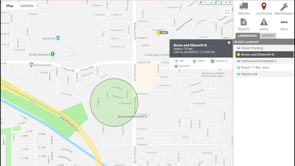
When you click on a landmark from the list or when you click on a landmark from the map, the Landmark Card appears, which shows you the radius and latitude / longitude.

"Help! Why can't I see my landmarks on the map?" Ensure the Landmarks toggle is turned on.
[/solution][solution term="pro,enterprise"]
Refer to Maps to learn more about using landmarks on maps.
Refer to Reports to learn more about using landmarks in reports.
Refer to Alerts to learn more about using landmark-based alerts.[/solution]
[post_title] => About Landmarks
[post_excerpt] => Landmarks (also known as geofences) determine virtual boundaries. Within the portal, you can use landmarks to trigger alerts, refine reports, filter maps, and more.
[post_status] => publish
[comment_status] => closed
[ping_status] => closed
[post_password] =>
[post_name] => about-landmarks
[to_ping] =>
[pinged] =>
[post_modified] => 2023-01-10 11:16:03
[post_modified_gmt] => 2023-01-10 18:16:03
[post_content_filtered] =>
[post_parent] => 0
[guid] => http://gpsihelp.wpengine.com/?post_type=documentation&p=398
[menu_order] => 6
[post_type] => documentation
[post_mime_type] =>
[comment_count] => 0
[filter] => raw
)
[1] => WP_Post Object
(
[ID] => 1557
[post_author] => 12
[post_date] => 2016-02-24 20:05:33
[post_date_gmt] => 2016-02-24 20:05:33
[post_content] => Geographic Information System (GIS) mapping data, such as ESRI overlays, require assistance from the portal provider's IT Staff. Please contact your account manager or Customer Support for more information.
It is important to note that these are static overlays for visual reference only. If you need reportable overlay information, you would have to import KMZ/KML files via Google Earth or ESRI shape files via Google Earth Pro. Points will be converted to radius landmarks, and bounded areas will come in as landmarks with the same shape. Line data cannot be converted to landmarks.
[post_title] => Adding a GIS Overlay
[post_excerpt] => Geographic Information System (GIS) mapping data, such as ESRI overlays, require assistance from the portal provider's IT Staff.
[post_status] => publish
[comment_status] => closed
[ping_status] => closed
[post_password] =>
[post_name] => adding-a-gis-overlay
[to_ping] =>
[pinged] =>
[post_modified] => 2019-06-05 13:51:24
[post_modified_gmt] => 2019-06-05 20:51:24
[post_content_filtered] =>
[post_parent] => 398
[guid] => http://gpsihelp.wpengine.com/?post_type=documentation&p=1557
[menu_order] => 5
[post_type] => documentation
[post_mime_type] =>
[comment_count] => 0
[filter] => raw
)
[2] => WP_Post Object
(
[ID] => 144
[post_author] => 12
[post_date] => 2015-11-20 18:00:19
[post_date_gmt] => 2015-11-20 18:00:19
[post_content] => [solution term="basic,standard"]You can add a landmark by drawing a new one from the Landmarks tab or from a dropped pin on the map.
Draw a New Landmark
Drawing a landmark allows you to visually specify the borders on the map surface.
To draw a new landmark:
- From the menu, click Landmarks.
- Click Add Landmark.
A default circle appears on the center of the map. The circle has four sizing handles on the perimeter and one moving handle in the center.
- Enter a label for the landmark.
- Choose the shape of the landmark (Circle or Polygon):
Colors can help you categorize or group landmarks (e.g., set all customer sites to light orange).
To create a landmark from a pin:
).A default circle appears on the center of the map. The circle has four sizing handles on the perimeter and one moving handle in the center.
Colors can help you categorize or group landmarks (e.g., set all customer sites to light orange).
To create a landmark from a report:
).The Landmark Editor opens in a new browser tab. The location selected from the report is shown on the map based on the Latitude and Longitude coordinates. The default landmark shape is a circle.
The landmark is now available to use in relevant areas of the portal.
The name of the landmark replaces the physical address on any relevant location line items.
[/solution][solution term="pro"]You can create landmarks by manually entering addresses into the web portal one at a time, clicking on points from web maps or reports, importing addresses from a spreadsheet, importing the KML coordinates from Google Earth, sending an SMS message via Query Services, or clicking on a point from a map in the mobile app.Example The owner at Company XYZ wants an easy way to identify the headquarters building whenever its address appears on reports. For dispatching purposes, he also wants to easily find out which of his vehicles is closest to headquarters at any given time.
To enter a new landmark location:
The Edit Landmarks page opens in a new browser tab.
) to the location you want to isolate.
The address and latitude/longitude coordinates are updated in the landmark details. The location also appears on the map with a default landmark boundary (circle).
To manually create your own landmark boundaries for the location, choose from the circle or polygon shape icons on the map.
Satellite view or Street view (
) can also help you define more precise boundaries.
Alerts are only generated for Landmarks with an area smaller than a 10,000-foot radius. Landmarks exceeding this size will be excluded from alert generation. Please review your Landmark sizes to ensure critical locations are within the alerting threshold.

Any relevant system groups (i.e., "Landmarks by [username]") are populated in the Groups box. The landmark is now available to use on maps, reports, and dashlets.
ExampleThe owner at Company XYZ is viewing a map for the current location of his Service vehicles, and he noticed that one of his vehicles is at a new customer address that hasn't yet been added as a landmark.
To create a landmark from a map:

The Edit Landmarks page opens in a new browser tab.
The landmark is now available to use on maps, reports, and dashlets.
ExampleThe owner at Company XYZ notices a non-business location that appears frequently on his reports. After reviewing the interactive map for the address, he realizes that it's the home address of one of his drivers. He wants to run a history report to find out how many times any of his fleet vehicles has visited that landmark in the last 30 days.
To create a landmark from a report:
).
The Edit Landmarks page opens in a new browser tab.
The landmark is now available to use on maps, reports, and dashlets. In the Company XYZ example, the owner can run the Landmark History Report using the landmark: 
If you already have data in the portal, it's a good practice to first export the data for safe-keeping so that you can restore if you later make a mistake in your import.
To add new landmarks by importing from a spreadsheet:
Fields in the Reference column on the Update/Export page are required. If your spreadsheet has duplicate data rows for a reference column, such as two rows with the same landmark name, the spreadsheet upload will only import one record using the last row of data.
Available columns for landmark import include: Longitude, Latitude, Landmark Name, Address, City, State, and Zip. You must include data for the following cells: Name (reference column) and Address (required unless you input Latitude and Longitude).Address values should include house number, street, city, state, zip code, and country. In lieu of a single "Address" column, you can optionally add separate columns for each piece of the address. Radius values can be in feet, miles, or meters. (You'll specify during the import.) If you have multiple items within a cell, use the following delineator(s): : - multiple assignments (e.g., Vehicles:Drivers) ; - multiple items (e.g., red;gray)
The Import Step 2: Define Columns grid appears. This grid allows you to see how your spreadsheet column names will be applied to the appropriate fields in the GPS Insight portal. Set any fields marked "IGNORE" to the appropriate column name.
If a landmark name from your spreadsheet matches the name of an existing landmark in your account, you have three options: Skip (do not import the duplicate), Alter (automatically add an ordered numeral to the duplicate), or Update (overwrite the existing landmark properties with the duplicate). The default is "Alter."
The Import Step 3: Preview Import Data grid appears. This grid allows you to verify the data that will be imported. Latitude and longitude values are automatically added for addresses. Some addresses may not be found if you used only latitude and longitude values in the spreadsheet.
The landmarks will automatically be included in the system group, "Landmarks by [username]."
The Import Step 4: Import All Data grid appears. This grid provides a summary of the import results. If any rows were skipped, they will be listed here with the reason they were not imported.
If you are importing a large group of landmarks, the process may take some time before the auto sync mechanism runs. If your import is time-sensitive, contact Support to request a manual sync to expedite this process.
Example Company XYZ uses Google Earth to identify all of its dispatch facilities. XYZ's owner wants to import all landmarks from Google Earth into the portal.
To create and import landmarks from Google Earth:

The Google Earth - New Polygon screen appears. (Leave this dialog open.)


You can continue to create landmarks in Google Earth as needed. When you are ready to import the landmark(s) into the portal, proceed with the steps below.
You can also right-click the selected area on the map (white space) to copy the XML of an individual landmark.

The Import KML Polygons page appears.
If a landmark name from the XML matches the name of an existing landmark in your account, you have two options: Skip (do not import the duplicate) or Alter (automatically add an ordered numeral to the duplicate). The default is "Alter."


A success message indicates what landmarks were created and what landmark groups (if any).

Example The owner at Company XYZ wants an easy way to identify the headquarters building whenever its address appears on reports. For dispatching purposes, he also wants to easily find out which of his vehicles is closest to headquarters at any given time.
To enter a new landmark location:
The Edit Landmarks page opens in a new browser tab.
) to the location you want to isolate.
The address and latitude/longitude coordinates are updated in the landmark details. The location also appears on the map with a default landmark boundary (circle).
To manually create your own landmark boundaries for the location, choose from the circle or polygon shape icons on the map.
Satellite view or Street view (
) can also help you define more precise boundaries.
Alerts are only generated for Landmarks with an area smaller than a 10,000-foot radius. Landmarks exceeding this size will be excluded from alert generation. Please review your Landmark sizes to ensure critical locations are within the alerting threshold.

Any relevant system groups (i.e., "Landmarks by [username]") are populated in the Groups box. The landmark is now available to use on maps, reports, and dashlets.
ExampleThe owner at Company XYZ is viewing a map for the current location of his Service vehicles, and he noticed that one of his vehicles is at a new customer address that hasn't yet been added as a landmark.
To create a landmark from a map:

The Edit Landmarks page opens in a new browser tab.
The landmark is now available to use on maps, reports, and dashlets.
ExampleThe owner at Company XYZ notices a non-business location that appears frequently on his reports. After reviewing the interactive map for the address, he realizes that it's the home address of one of his drivers. He wants to run a history report to find out how many times any of his fleet vehicles have visited that landmark in the last 30 days.
To create a landmark from a report:
).
The Edit Landmarks page opens in a new browser tab.
The landmark is now available to use on maps, reports, and dashlets. In the Company XYZ example, the owner can run the Landmark History Report using the landmark: 
If you already have data in the portal, it's a good practice to first export the data for safe-keeping so that you can restore if you later make a mistake in your import.
To add new landmarks by importing from a spreadsheet:
Fields in the Reference column on the Update/Export page are required. If your spreadsheet has duplicate data rows for a reference column, such as two rows with the same landmark name, the spreadsheet upload will only import one record using the last row of data.
Available columns for landmark import include: Longitude, Latitude, Landmark Name, Address, City, State, and Zip. You must include data for the following cells: Name (reference column) and Address (required unless you input Latitude and Longitude).Address values should include house number, street, city, state, zip code, and country. In lieu of a single "Address" column, you can optionally add separate columns for each piece of the address. Radius values can be in feet, miles, or meters. (You'll specify during the import.) If you have multiple items within a cell, use the following delineator(s): ~ - full path for hierarchy (e.g., Company Name~East~Northeast) : - multiple assignments (e.g., Vehicles:Drivers) ; - multiple items (e.g., red;gray)
The Import Step 2: Define Columns grid appears. This grid allows you to see how your spreadsheet column names will be applied to the appropriate fields in the GPS Insight portal. Set any fields marked "IGNORE" to the appropriate column name.
If a landmark name from your spreadsheet matches the name of an existing landmark in your account, you have three options: Skip (do not import the duplicate), Alter (automatically add an ordered numeral to the duplicate), or Update (overwrite the existing landmark properties with the duplicate). The default is "Alter."
The Import Step 3: Preview Import Data grid appears. This grid allows you to verify the data that will be imported. Latitude and longitude values are automatically added for addresses. Some addresses may not be found if you used only latitude and longitude values in the spreadsheet.
The landmarks will automatically be included in the system group, "Landmarks by [username]."
The Import Step 4: Import All Data grid appears. This grid provides a summary of the import results. If any rows were skipped, they will be listed here with the reason they were not imported.
If you are importing a large group of landmarks, the process may take some time before the auto sync mechanism runs. If your import is time-sensitive, contact Support to request a manual sync to expedite this process.
Example Company XYZ uses Google Earth to identify all of its dispatch facilities. XYZ's owner wants to import all landmarks from Google Earth into the portal.
To create and import landmarks from Google Earth:

The Google Earth - New Polygon screen appears. (Leave this dialog open.)


You can continue to create landmarks in Google Earth as needed. When you are ready to import the landmark(s) into the portal, proceed with the steps below.
You can also right-click the selected area on the map (white space) to copy the XML of an individual landmark.

The Import KML Polygons page appears.
If a landmark name from the XML matches the name of an existing landmark in your account, you have two options: Skip (do not import the duplicate) or Alter (automatically add an ordered numeral to the duplicate). The default is "Alter."


A success message indicates what landmarks were created and what landmark groups (if any).

To edit a landmark:
To delete a landmark:
To edit a landmark:
The Edit Landmarks page opens in a new browser tab.
All landmarks within the selected group load within the list. To narrow the list, use the Landmark Group drop-down to filter landmarks by a particular landmark group.

The properties for the selected landmark load, and the landmark location is visible on the map.
To view other landmarks on the map within the same landmark group, select the Show Group check box.
To edit multiple landmarks:
The Mass Update page opens in the same browser tab.
The vehicle list shows only the vehicles that match your filter criteria.
To export a landmark:
The Edit Landmarks page opens in a new browser tab.
All landmarks within the selected group load within the list. To narrow the list, use the Landmark Group drop-down to filter landmarks by a particular landmark group.

The properties for the selected landmark load, and the landmark location is visible on the map.
).A link to the exported .kmz file appears in your browser's download bar. You can also launch it from your computer's Downloads folder.
To export all landmarks:
A link to the exported .kmz file appears in your browser's download bar. You can also launch it from your computer's Downloads folder.
System landmarks are those that are automatically created and cannot be deleted. Each time a portal user creates a landmark, it automatically gets added to a system group called, "Landmarks by [username]."
Example Company XYZ wants to encourage drivers to turn off their engines while inside dispatch centers. The owner created landmarks for each dispatch center and now wants to set up an alert whenever vehicles are inside one of those locations.
To create a new landmark group and set landmark membership:


The landmark group appears in the Landmark drop-down when configuring relevant reports and/or alerts.

System landmarks are those that are automatically created and cannot be deleted. Each time a portal user creates a landmark, it automatically gets added to a system group called, "Landmarks by [username]."
Example Company XYZ has several dispatch centers in Arizona and Minnesota. The owner created landmarks for each dispatch center and now wants to report on stop/idle times of vehicles, separated by Arizona and Minnesota dispatch centers. He also wants to toggle on/off landmarks when viewing maps.
You can also create landmark groups from the Map Dashboard.
To create a new landmark group and set landmark membership:
The Landmark Groups page opens in a new browser tab.


A new landmark group is added to the Landmark Groups grid.

You can also click Edit (pencil icon) next to a user's name to add/remove the user to/from multiple landmark groups at once.

You can also click Edit (pencil icon) next to a landmark name to add/remove the it to/from multiple landmark groups at once. You can also add existing landmarks to this new group by editing landmarks using the mass updater. The new landmark group is also available whenever you add a new landmark.
In the Company XYZ example, the owner can now run the Landmark Group report to view idle and stop details per vehicle separated by Arizona and Minnesota landmarks.

Additionally, he can toggle on/off landmarks by group whenever viewing 2D or 3D maps:


To download landmark groups to Google Earth, hover over the Mapping menu, and click 3D Download.
Map settings vary by map. Use the Edit icon on the Map dashlet to set a landmark group. The following example shows all snow vehicles and snow zones: 
*Although there is no limit to the number of vertices on a polygon, there is a limit to the amount of space we have in the database to store them. (The smaller, the better.) If a polygon is uploaded with a polygon-string longer than we can store in the database, the system simplifies the points and compress it down to fit. For example, if the lat-long is specified to 11-12 points of precision, the system shortens that down to 7 points or 5 points of precision, so the total polygon-string is shorter. Also, longer polygon strings mean more operations in the code to check polygon boundaries. It is always advisable for polygons be simple with long straight lines wherever possible. With most vehicles tracking between 30-seconds to 2-minutes, there is almost never a reason to have very detailed polygons.
[solution term="basic"]Click the Landmarks menu item to open the Landmarks tab. All of your landmarks are listed on this tab.

"Help! Why can't I see my landmarks on the map?" Ensure the Landmarks toggle is turned on.
[/solution][solution term="pro,enterprise"]
Refer to Maps to learn more about using landmarks on maps.
Refer to Reports to learn more about using landmarks in reports.
Refer to Alerts to learn more about using landmark-based alerts.[/solution]
[post_title] => About Landmarks
[post_excerpt] => Landmarks (also known as geofences) determine virtual boundaries. Within the portal, you can use landmarks to trigger alerts, refine reports, filter maps, and more.
[post_status] => publish
[comment_status] => closed
[ping_status] => closed
[post_password] =>
[post_name] => about-landmarks
[to_ping] =>
[pinged] =>
[post_modified] => 2023-01-10 11:16:03
[post_modified_gmt] => 2023-01-10 18:16:03
[post_content_filtered] =>
[post_parent] => 0
[guid] => http://gpsihelp.wpengine.com/?post_type=documentation&p=398
[menu_order] => 6
[post_type] => documentation
[post_mime_type] =>
[comment_count] => 0
[filter] => raw
)
[comment_count] => 0
[current_comment] => -1
[found_posts] => 6
[max_num_pages] => 1
[max_num_comment_pages] => 0
[is_single] =>
[is_preview] =>
[is_page] =>
[is_archive] => 1
[is_date] =>
[is_year] =>
[is_month] =>
[is_day] =>
[is_time] =>
[is_author] =>
[is_category] =>
[is_tag] =>
[is_tax] => 1
[is_search] =>
[is_feed] =>
[is_comment_feed] =>
[is_trackback] =>
[is_home] =>
[is_privacy_policy] =>
[is_404] =>
[is_embed] =>
[is_paged] =>
[is_admin] =>
[is_attachment] =>
[is_singular] =>
[is_robots] =>
[is_favicon] =>
[is_posts_page] =>
[is_post_type_archive] => 1
[query_vars_hash:WP_Query:private] => 41be7f57c199668ad5d539fa9b7515cf
[query_vars_changed:WP_Query:private] => 1
[thumbnails_cached] =>
[allow_query_attachment_by_filename:protected] =>
[stopwords:WP_Query:private] =>
[compat_fields:WP_Query:private] => Array
(
[0] => query_vars_hash
[1] => query_vars_changed
)
[compat_methods:WP_Query:private] => Array
(
[0] => init_query_flags
[1] => parse_tax_query
)
[query_cache_key:WP_Query:private] => wp_query:13d4d4cd2afcd891f52523bc35f42b91
)
[children] => Array
(
)
[term] => WP_Term Object
(
[term_id] => 13
[name] => Landmarks
[slug] => landmarks
[term_group] => 0
[term_taxonomy_id] => 13
[taxonomy] => feature
[description] => Landmarks are used to determine virtual boundaries on a map using either circles or polygon shapes. Landmarks allow you to quickly identify locations (as opposed to entering a long address), trigger alerts (i.e., whenever a vehicle enters or exits a landmarks), refine reports, and more. Also known as geofences.
[parent] => 0
[count] => 13
[filter] => raw
[term_order] => 7
[cat_ID] => 13
[category_count] => 13
[category_description] => Landmarks are used to determine virtual boundaries on a map using either circles or polygon shapes. Landmarks allow you to quickly identify locations (as opposed to entering a long address), trigger alerts (i.e., whenever a vehicle enters or exits a landmarks), refine reports, and more. Also known as geofences.
[cat_name] => Landmarks
[category_nicename] => landmarks
[category_parent] => 0
)
[post_count] => 6
)
)
[video] => Array
(
[13] => Array
(
[posts] => WP_Query Object
(
[query] => Array
(
[orderby] => title
[order] => ASC
[post_type] => video
[posts_per_page] => 999
[tax_query] => Array
(
[0] => Array
(
[taxonomy] => feature
[field] => term_id
[terms] => 13
[include_children] => 1
)
[1] => Array
(
[taxonomy] => solution
[field] => term_id
[terms] => 12
)
[relation] => AND
[2] => Array
(
[taxonomy] => product
[field] => term_id
[terms] => 511
)
)
[meta_query] => Array
(
[0] => Array
(
[key] => _exclude_whitelabel_full
[compare] => NOT EXISTS
)
)
)
[query_vars] => Array
(
[orderby] => title
[order] => ASC
[post_type] => video
[posts_per_page] => 999
[tax_query] => Array
(
[0] => Array
(
[taxonomy] => feature
[field] => term_id
[terms] => 13
[include_children] => 1
)
[1] => Array
(
[taxonomy] => solution
[field] => term_id
[terms] => 12
)
[relation] => AND
[2] => Array
(
[taxonomy] => product
[field] => term_id
[terms] => 511
)
)
[meta_query] => Array
(
[0] => Array
(
[key] => _exclude_whitelabel_full
[compare] => NOT EXISTS
)
)
[error] =>
[m] =>
[p] => 0
[post_parent] =>
[subpost] =>
[subpost_id] =>
[attachment] =>
[attachment_id] => 0
[name] =>
[pagename] =>
[page_id] => 0
[second] =>
[minute] =>
[hour] =>
[day] => 0
[monthnum] => 0
[year] => 0
[w] => 0
[category_name] =>
[tag] =>
[cat] =>
[tag_id] =>
[author] =>
[author_name] =>
[feed] =>
[tb] =>
[paged] => 0
[meta_key] =>
[meta_value] =>
[preview] =>
[s] =>
[sentence] =>
[title] =>
[fields] => all
[menu_order] =>
[embed] =>
[category__in] => Array
(
)
[category__not_in] => Array
(
)
[category__and] => Array
(
)
[post__in] => Array
(
)
[post__not_in] => Array
(
[0] => 14750
[1] => 23436
[2] => 27424
[3] => 27817
[4] => 30225
[5] => 31065
[6] => 31175
[7] => 32017
[8] => 32296
[9] => 32565
[10] => 32605
[11] => 32636
[12] => 33723
[13] => 33737
[14] => 33761
[15] => 34344
[16] => 34459
[17] => 34553
[18] => 34586
[19] => 34590
[20] => 34604
)
[post_name__in] => Array
(
)
[tag__in] => Array
(
)
[tag__not_in] => Array
(
)
[tag__and] => Array
(
)
[tag_slug__in] => Array
(
)
[tag_slug__and] => Array
(
)
[post_parent__in] => Array
(
)
[post_parent__not_in] => Array
(
)
[author__in] => Array
(
)
[author__not_in] => Array
(
)
[search_columns] => Array
(
)
[ignore_sticky_posts] =>
[suppress_filters] =>
[cache_results] => 1
[update_post_term_cache] => 1
[update_menu_item_cache] =>
[lazy_load_term_meta] => 1
[update_post_meta_cache] => 1
[nopaging] =>
[comments_per_page] => 50
[no_found_rows] =>
[taxonomy] => feature
[term_id] => 13
)
[tax_query] => WP_Tax_Query Object
(
[queries] => Array
(
[0] => Array
(
[taxonomy] => feature
[terms] => Array
(
[0] => 13
)
[field] => term_id
[operator] => IN
[include_children] => 1
)
[1] => Array
(
[taxonomy] => solution
[terms] => Array
(
[0] => 12
)
[field] => term_id
[operator] => IN
[include_children] => 1
)
[relation] => AND
[2] => Array
(
[taxonomy] => product
[terms] => Array
(
[0] => 511
)
[field] => term_id
[operator] => IN
[include_children] => 1
)
)
[relation] => AND
[table_aliases:protected] => Array
(
[0] => wp_term_relationships
[1] => tt1
[2] => tt2
)
[queried_terms] => Array
(
[feature] => Array
(
[terms] => Array
(
[0] => 13
)
[field] => term_id
)
[solution] => Array
(
[terms] => Array
(
[0] => 12
)
[field] => term_id
)
[product] => Array
(
[terms] => Array
(
[0] => 511
)
[field] => term_id
)
)
[primary_table] => wp_posts
[primary_id_column] => ID
)
[meta_query] => WP_Meta_Query Object
(
[queries] => Array
(
[0] => Array
(
[key] => _exclude_whitelabel_full
[compare] => NOT EXISTS
)
[relation] => OR
)
[relation] => AND
[meta_table] => wp_postmeta
[meta_id_column] => post_id
[primary_table] => wp_posts
[primary_id_column] => ID
[table_aliases:protected] => Array
(
[0] => wp_postmeta
)
[clauses:protected] => Array
(
[wp_postmeta] => Array
(
[key] => _exclude_whitelabel_full
[compare] => NOT EXISTS
[compare_key] => =
[alias] => wp_postmeta
[cast] => CHAR
)
)
[has_or_relation:protected] =>
)
[date_query] =>
[request] => SELECT SQL_CALC_FOUND_ROWS wp_posts.ID
FROM wp_posts LEFT JOIN wp_term_relationships ON (wp_posts.ID = wp_term_relationships.object_id) LEFT JOIN wp_term_relationships AS tt1 ON (wp_posts.ID = tt1.object_id) LEFT JOIN wp_term_relationships AS tt2 ON (wp_posts.ID = tt2.object_id) LEFT JOIN wp_postmeta ON ( wp_posts.ID = wp_postmeta.post_id AND wp_postmeta.meta_key = '_exclude_whitelabel_full' )
WHERE 1=1 AND wp_posts.ID NOT IN (14750,23436,27424,27817,30225,31065,31175,32017,32296,32565,32605,32636,33723,33737,33761,34344,34459,34553,34586,34590,34604) AND (
wp_term_relationships.term_taxonomy_id IN (13)
AND
tt1.term_taxonomy_id IN (12)
AND
tt2.term_taxonomy_id IN (511)
) AND (
wp_postmeta.post_id IS NULL
) AND ((wp_posts.post_type = 'video' AND (wp_posts.post_status = 'publish' OR wp_posts.post_status = 'graded' OR wp_posts.post_status = 'not_graded')))
GROUP BY wp_posts.ID
ORDER BY wp_posts.post_title ASC
LIMIT 0, 999
[posts] => Array
(
[0] => WP_Post Object
(
[ID] => 1115
[post_author] => 12
[post_date] => 2016-02-01 22:53:12
[post_date_gmt] => 2016-02-01 22:53:12
[post_content] => You can create landmarks by manually entering addresses into the web portal one at a time, clicking on points from web maps or reports, importing addresses from a spreadsheet, importing the KML coordinates from Google Earth, sending an SMS message via Query Services, or clicking on a point from a map in the mobile app.
Although the portal interface has been updated since this video was recorded, the process has not changed.
[post_title] => Adding a Landmark [post_excerpt] => You can create landmarks by manually entering addresses into the web portal one at a time. [post_status] => publish [comment_status] => closed [ping_status] => closed [post_password] => [post_name] => adding-a-landmark [to_ping] => [pinged] => [post_modified] => 2019-11-21 10:40:40 [post_modified_gmt] => 2019-11-21 17:40:40 [post_content_filtered] => [post_parent] => 0 [guid] => http://gpsihelp.wpengine.com/?post_type=video&p=1115 [menu_order] => 0 [post_type] => video [post_mime_type] => [comment_count] => 0 [filter] => raw ) [1] => WP_Post Object ( [ID] => 1118 [post_author] => 12 [post_date] => 2016-02-01 22:56:04 [post_date_gmt] => 2016-02-01 22:56:04 [post_content] => The portal provides two areas for you to edit or delete a landmark: Edit Landmark page (one at a time) or the Mass Update page (multiple).Although the portal interface has been updated since this video was recorded, the process has not changed.
[post_title] => Editing a Landmark [post_excerpt] => The portal provides two areas for you to edit or delete a landmark: Edit Landmark page (one at a time) or the Mass Update page (multiple). [post_status] => publish [comment_status] => closed [ping_status] => closed [post_password] => [post_name] => editing-a-landmark [to_ping] => [pinged] => [post_modified] => 2019-11-21 10:39:58 [post_modified_gmt] => 2019-11-21 17:39:58 [post_content_filtered] => [post_parent] => 0 [guid] => http://gpsihelp.wpengine.com/?post_type=video&p=1118 [menu_order] => 0 [post_type] => video [post_mime_type] => [comment_count] => 0 [filter] => raw ) [2] => WP_Post Object ( [ID] => 1121 [post_author] => 12 [post_date] => 2016-02-01 22:57:59 [post_date_gmt] => 2016-02-01 22:57:59 [post_content] => Landmark groups are used to organize your landmarks based on logical or geographical separations that make sense to your business. Groups allow you to easily filter reports, maps, and dashlets. Groups also determine which users of your portal account can view certain landmarks.Although the portal interface has been updated since this video was recorded, the process has not changed.
[post_title] => Using Landmark Groups [post_excerpt] => Landmark groups are used to organize your landmarks based on logical or geographical separations that make sense to your business. [post_status] => publish [comment_status] => closed [ping_status] => closed [post_password] => [post_name] => using-landmark-groups [to_ping] => [pinged] => [post_modified] => 2019-11-21 10:39:14 [post_modified_gmt] => 2019-11-21 17:39:14 [post_content_filtered] => [post_parent] => 0 [guid] => http://gpsihelp.wpengine.com/?post_type=video&p=1121 [menu_order] => 0 [post_type] => video [post_mime_type] => [comment_count] => 0 [filter] => raw ) [3] => WP_Post Object ( [ID] => 3582 [post_author] => 12 [post_date] => 2016-09-08 19:48:59 [post_date_gmt] => 2016-09-08 19:48:59 [post_content] => From the Map Dashboard, click the Landmarks menu item to open the Landmarks tab. All of your landmarks are listed on this tab. When you click on a landmark from the list or when you click on a landmark from the map, the Landmark Card appears, which shows you the radius and latitude / longitude. The boundary that you set up for a landmark can exist as a circle or a polygon. [post_title] => Using Landmarks on the Map Dashboard [post_excerpt] => From the Map Dashboard, click the Landmarks menu item to open the Landmarks tab. [post_status] => publish [comment_status] => closed [ping_status] => closed [post_password] => [post_name] => using-landmarks-on-the-map-dashboard [to_ping] => [pinged] => [post_modified] => 2019-11-21 10:38:28 [post_modified_gmt] => 2019-11-21 17:38:28 [post_content_filtered] => [post_parent] => 0 [guid] => http://help.gpsinsight.com/?post_type=video&p=3582 [menu_order] => 0 [post_type] => video [post_mime_type] => [comment_count] => 0 [filter] => raw ) ) [post_count] => 4 [current_post] => -1 [before_loop] => 1 [in_the_loop] => [post] => WP_Post Object ( [ID] => 1115 [post_author] => 12 [post_date] => 2016-02-01 22:53:12 [post_date_gmt] => 2016-02-01 22:53:12 [post_content] => You can create landmarks by manually entering addresses into the web portal one at a time, clicking on points from web maps or reports, importing addresses from a spreadsheet, importing the KML coordinates from Google Earth, sending an SMS message via Query Services, or clicking on a point from a map in the mobile app.Although the portal interface has been updated since this video was recorded, the process has not changed.
[post_title] => Adding a Landmark [post_excerpt] => You can create landmarks by manually entering addresses into the web portal one at a time. [post_status] => publish [comment_status] => closed [ping_status] => closed [post_password] => [post_name] => adding-a-landmark [to_ping] => [pinged] => [post_modified] => 2019-11-21 10:40:40 [post_modified_gmt] => 2019-11-21 17:40:40 [post_content_filtered] => [post_parent] => 0 [guid] => http://gpsihelp.wpengine.com/?post_type=video&p=1115 [menu_order] => 0 [post_type] => video [post_mime_type] => [comment_count] => 0 [filter] => raw ) [comment_count] => 0 [current_comment] => -1 [found_posts] => 4 [max_num_pages] => 1 [max_num_comment_pages] => 0 [is_single] => [is_preview] => [is_page] => [is_archive] => 1 [is_date] => [is_year] => [is_month] => [is_day] => [is_time] => [is_author] => [is_category] => [is_tag] => [is_tax] => 1 [is_search] => [is_feed] => [is_comment_feed] => [is_trackback] => [is_home] => [is_privacy_policy] => [is_404] => [is_embed] => [is_paged] => [is_admin] => [is_attachment] => [is_singular] => [is_robots] => [is_favicon] => [is_posts_page] => [is_post_type_archive] => 1 [query_vars_hash:WP_Query:private] => c4533b94d5c529ff200bba61fd65de66 [query_vars_changed:WP_Query:private] => 1 [thumbnails_cached] => [allow_query_attachment_by_filename:protected] => [stopwords:WP_Query:private] => [compat_fields:WP_Query:private] => Array ( [0] => query_vars_hash [1] => query_vars_changed ) [compat_methods:WP_Query:private] => Array ( [0] => init_query_flags [1] => parse_tax_query ) [query_cache_key:WP_Query:private] => wp_query:8584378b07eedb2cadf62dddf734f012 ) [children] => Array ( ) [term] => WP_Term Object ( [term_id] => 13 [name] => Landmarks [slug] => landmarks [term_group] => 0 [term_taxonomy_id] => 13 [taxonomy] => feature [description] => Landmarks are used to determine virtual boundaries on a map using either circles or polygon shapes. Landmarks allow you to quickly identify locations (as opposed to entering a long address), trigger alerts (i.e., whenever a vehicle enters or exits a landmarks), refine reports, and more. Also known as geofences. [parent] => 0 [count] => 13 [filter] => raw [term_order] => 7 [cat_ID] => 13 [category_count] => 13 [category_description] => Landmarks are used to determine virtual boundaries on a map using either circles or polygon shapes. Landmarks allow you to quickly identify locations (as opposed to entering a long address), trigger alerts (i.e., whenever a vehicle enters or exits a landmarks), refine reports, and more. Also known as geofences. [cat_name] => Landmarks [category_nicename] => landmarks [category_parent] => 0 ) [post_count] => 4 ) ) [bestpractice] => Array ( ) [deepdive] => Array ( [13] => Array ( [posts] => WP_Query Object ( [query] => Array ( [orderby] => title [order] => ASC [post_type] => deepdive [posts_per_page] => 999 [tax_query] => Array ( [0] => Array ( [taxonomy] => feature [field] => term_id [terms] => 13 [include_children] => 1 ) [1] => Array ( [taxonomy] => solution [field] => term_id [terms] => 12 ) [relation] => AND [2] => Array ( [taxonomy] => product [field] => term_id [terms] => 511 ) ) [meta_query] => Array ( [0] => Array ( [key] => _exclude_whitelabel_full [compare] => NOT EXISTS ) ) ) [query_vars] => Array ( [orderby] => title [order] => ASC [post_type] => deepdive [posts_per_page] => 999 [tax_query] => Array ( [0] => Array ( [taxonomy] => feature [field] => term_id [terms] => 13 [include_children] => 1 ) [1] => Array ( [taxonomy] => solution [field] => term_id [terms] => 12 ) [relation] => AND [2] => Array ( [taxonomy] => product [field] => term_id [terms] => 511 ) ) [meta_query] => Array ( [0] => Array ( [key] => _exclude_whitelabel_full [compare] => NOT EXISTS ) ) [error] => [m] => [p] => 0 [post_parent] => [subpost] => [subpost_id] => [attachment] => [attachment_id] => 0 [name] => [pagename] => [page_id] => 0 [second] => [minute] => [hour] => [day] => 0 [monthnum] => 0 [year] => 0 [w] => 0 [category_name] => [tag] => [cat] => [tag_id] => [author] => [author_name] => [feed] => [tb] => [paged] => 0 [meta_key] => [meta_value] => [preview] => [s] => [sentence] => [title] => [fields] => all [menu_order] => [embed] => [category__in] => Array ( ) [category__not_in] => Array ( ) [category__and] => Array ( ) [post__in] => Array ( ) [post__not_in] => Array ( [0] => 14750 [1] => 23436 [2] => 27424 [3] => 27817 [4] => 30225 [5] => 31065 [6] => 31175 [7] => 32017 [8] => 32296 [9] => 32565 [10] => 32605 [11] => 32636 [12] => 33723 [13] => 33737 [14] => 33761 [15] => 34344 [16] => 34459 [17] => 34553 [18] => 34586 [19] => 34590 [20] => 34604 ) [post_name__in] => Array ( ) [tag__in] => Array ( ) [tag__not_in] => Array ( ) [tag__and] => Array ( ) [tag_slug__in] => Array ( ) [tag_slug__and] => Array ( ) [post_parent__in] => Array ( ) [post_parent__not_in] => Array ( ) [author__in] => Array ( ) [author__not_in] => Array ( ) [search_columns] => Array ( ) [ignore_sticky_posts] => [suppress_filters] => [cache_results] => 1 [update_post_term_cache] => 1 [update_menu_item_cache] => [lazy_load_term_meta] => 1 [update_post_meta_cache] => 1 [nopaging] => [comments_per_page] => 50 [no_found_rows] => [taxonomy] => feature [term_id] => 13 ) [tax_query] => WP_Tax_Query Object ( [queries] => Array ( [0] => Array ( [taxonomy] => feature [terms] => Array ( [0] => 13 ) [field] => term_id [operator] => IN [include_children] => 1 ) [1] => Array ( [taxonomy] => solution [terms] => Array ( [0] => 12 ) [field] => term_id [operator] => IN [include_children] => 1 ) [relation] => AND [2] => Array ( [taxonomy] => product [terms] => Array ( [0] => 511 ) [field] => term_id [operator] => IN [include_children] => 1 ) ) [relation] => AND [table_aliases:protected] => Array ( [0] => wp_term_relationships [1] => tt1 [2] => tt2 ) [queried_terms] => Array ( [feature] => Array ( [terms] => Array ( [0] => 13 ) [field] => term_id ) [solution] => Array ( [terms] => Array ( [0] => 12 ) [field] => term_id ) [product] => Array ( [terms] => Array ( [0] => 511 ) [field] => term_id ) ) [primary_table] => wp_posts [primary_id_column] => ID ) [meta_query] => WP_Meta_Query Object ( [queries] => Array ( [0] => Array ( [key] => _exclude_whitelabel_full [compare] => NOT EXISTS ) [relation] => OR ) [relation] => AND [meta_table] => wp_postmeta [meta_id_column] => post_id [primary_table] => wp_posts [primary_id_column] => ID [table_aliases:protected] => Array ( [0] => wp_postmeta ) [clauses:protected] => Array ( [wp_postmeta] => Array ( [key] => _exclude_whitelabel_full [compare] => NOT EXISTS [compare_key] => = [alias] => wp_postmeta [cast] => CHAR ) ) [has_or_relation:protected] => ) [date_query] => [request] => SELECT SQL_CALC_FOUND_ROWS wp_posts.ID FROM wp_posts LEFT JOIN wp_term_relationships ON (wp_posts.ID = wp_term_relationships.object_id) LEFT JOIN wp_term_relationships AS tt1 ON (wp_posts.ID = tt1.object_id) LEFT JOIN wp_term_relationships AS tt2 ON (wp_posts.ID = tt2.object_id) LEFT JOIN wp_postmeta ON ( wp_posts.ID = wp_postmeta.post_id AND wp_postmeta.meta_key = '_exclude_whitelabel_full' ) WHERE 1=1 AND wp_posts.ID NOT IN (14750,23436,27424,27817,30225,31065,31175,32017,32296,32565,32605,32636,33723,33737,33761,34344,34459,34553,34586,34590,34604) AND ( wp_term_relationships.term_taxonomy_id IN (13) AND tt1.term_taxonomy_id IN (12) AND tt2.term_taxonomy_id IN (511) ) AND ( wp_postmeta.post_id IS NULL ) AND ((wp_posts.post_type = 'deepdive' AND (wp_posts.post_status = 'publish' OR wp_posts.post_status = 'graded' OR wp_posts.post_status = 'not_graded'))) GROUP BY wp_posts.ID ORDER BY wp_posts.post_title ASC LIMIT 0, 999 [posts] => Array ( [0] => WP_Post Object ( [ID] => 2412 [post_author] => 12 [post_date] => 2016-06-02 16:30:18 [post_date_gmt] => 2016-06-02 23:30:18 [post_content] =>Question: I want to set up landmarks for Arizona and Colorado. Is there a preset polygon option for this?
As with all landmarks, one option is to manually define your own areas by drawing on the map the borders of the landmark. Instead of outlining your own state-defined landmarks, another option is to import them using this States text file, which contains Keyhole Markup Language.If you want to open the states landmarks in Google Earth, change the file extension from .txt to .kml.
To import state landmarks:

The Import KML Polygons page appears.
If a landmark name from the XML matches the name of an existing landmark in your account, you have two options: Skip (do not import the duplicate) or Alter (automatically add an ordered numeral to the duplicate). The default is "Alter."


A success message indicates what landmarks were created and what landmark groups (if any).

Question: I want to set up landmarks for Arizona and Colorado. Is there a preset polygon option for this?
As with all landmarks, one option is to manually define your own areas by drawing on the map the borders of the landmark. Instead of outlining your own state-defined landmarks, another option is to import them using this States text file, which contains Keyhole Markup Language.If you want to open the states landmarks in Google Earth, change the file extension from .txt to .kml.
To import state landmarks:

The Import KML Polygons page appears.
If a landmark name from the XML matches the name of an existing landmark in your account, you have two options: Skip (do not import the duplicate) or Alter (automatically add an ordered numeral to the duplicate). The default is "Alter."


A success message indicates what landmarks were created and what landmark groups (if any).

It seems we can’t find what you’re looking for. Perhaps searching can help.